Picking through Pelican device#
Frequently Asked Questions about Picking through Pelican device
How do I generate credentials to use Partner API/Orders?#
How do I generate credentials to use Partner API/Orders?#
Please see the token management section here
How many tokens can I generate?#
How many tokens can I generate?#
There are no limitation of the amount of tokens. However they have an expiry time, each token can be used for 2 hours.
If an existing chain wants to onboard new outlets or scale, what is the process to integration?#
If an existing chain wants to onboard new outlets or scale, what is the process to integration?#
To scale the integration at chain level, following things are to be considered from your side
Verify access to your new stores in Partner Portal and review webhook configurations
(Optional) If you have any internal mapping for your store, it is possible for you to configure directly from the Shop Integrations plug-in. Use the new configured store-id or vendor id in your API requests.
Can I generate API tokens myself?#
Can I generate API tokens myself?#
Yes, you can generate tokens on your own. You just need to have client ID and client Secret , which you can get from your Account Manager.
How do I find my Foodpanda Vendor/store ID?#
How do I find my Foodpanda Vendor/store ID?#
You can get it directly Partner Portal>Shop Integrations>Settings>Vendor Identifier section or check with your Account manager.
What If I already have internal storeID and I don’t want to use Platform storeID?#
What If I already have internal storeID and I don’t want to use Platform storeID?#
You can configure your internal storeID in Partner Portal>Shop Integrations>Settings>Vendor Identifier section. Please note to use the newly mapped storeID in your API requests.
How to configure webhook and secret?#
How to configure webhook and secret?#
To secure your webhook communication between DH and Partner– a secret can be utilised for the purpose, it can be any string or its possible to have basic authentication mechanism. Secret is mandatory field in enabling the integrations.
Example of Basic authentication:
If your webhook service uses "partner" as the username and randompassword as the password, then the value in Base64 encoding of partner: randompassword, is cmFuZG9tcGFzc3dvcmQ=
Basic cmFuZG9tcGFzc3dvcmQ= needs to be added to the secret field in the Partner Portal to enable the integrtaions.
Which order statuses are sent to the webhook for Pelican Picking Integrations ?#
Which order statuses are sent to the webhook for Pelican Picking Integrations ?#
For Pelican Picking Integrations, the following order statuses are sent to the webhook:
READY_FOR_PICKUP: This status indicates that order picking and packing has been completed and the order is ready for pickup by a delivery rider.CANCELLED: An order is marked asCANCELLEDif it is canceled by the customer, delivery rider, or by you.DELIVERED(optional): This status will be sent after theREADY_FOR_PICKUPstatus. Since this status comes from the logistics flow, you can expect a delay of approximately 30 minutes. Please confirm with your Account Manager that theDELIVEREDstatus is enabled in your market.
How do I get the best out of the Pelican picking integration using my webhook?#
How do I get the best out of the Pelican picking integration using my webhook?#
READY_FOR_PICKUPandCANCELLEDorder statuses to be consumed by your webhookConfigurations: To secure your webhook configurations in Partner Portal, secrets can be utilised for the purpose it can be any string, we also accommodate basic authentication mechanism.
For example, if the webhook service uses
partneras the username andrandompasswordas the password, then the value in Base64 encoding ofpartner: *randompassword, iscmFuZG9tcGFzc3dvcmQ=Then the Authorization header field will appear as:
Basic cmFuZG9tcGFzc3dvcmQ=(this needs to be added to the secret field in the Partner Portal)
Securing your webhook using secret is mandatory
What are the limitations of the Partner API/Orders (Pelican)?#
What are the limitations of the Partner API/Orders (Pelican)?#
New orders created by customers on the Platform App are not forwarded to the webhook directly, only orders fulfilled and checkout by pickers are transmitted to the webhook with
READY_FOR_PICKUPstatusYou can expect to receive only
READY_FOR_PICKUPDELIVERED(optional)andCANCELLEDas order status
What are the fields in the order payload and how can I use them?#
What are the fields in the order payload and how can I use them?#
{"order_id": "85649d5b-fc07-4c96-8ddb-91e03525ae35","external_order_id": "lt8g-2543-em09","order_code": "5724","client": {"id": "5ffb4f4d-32a3-45a6-a0ee-34bc76a3ccfd","chain_id": "702953eb-c22a-43a3-b65b-86fea6ab8243","name": "xxx","country_code": "tw","store_id": "lt8g","external_partner_config_id": "254900"},"customer": {"_id": "i2obq4lo","national_id": "","tax_id": "","first_name": "***","last_name": "***","phone_number": "+88696****752","delivery_address": {"country": "","city": "","street": "","number": "","latitude": 0,"longitude": 0,"company": "","block": "","building": "","apartment": "","entrance": "","intercom": "","floor": "","suburb": "","zipcode": "","instructions": "","formattedAddress": ""},"invoicing_information": {"carrier_type": "business","carrier_value": "88370484"}},"comment": "","items": [{"_id": "23026c2d-16de-4cf4-96bc-e21af4efd53f","sku": "4710088823342","barcode": ["04710088823342"],"name": "xx| 1858 ml","pricing": {"pricing_type": "UNIT","unit_price": 0,"vat_percent": 0,"total_price": 0,"quantity": 0,"min_quantity": 0,"max_quantity": 1},"original_pricing": {"pricing_type": "UNIT","unit_price": 68,"vat_percent": 0,"total_price": 68,"quantity": 1,"min_quantity": 0,"max_quantity": 1,"list_price": 68},"container_deposit": 0,"discount": 0,"instructions": "","status": "NOT_FOUND","image_url": "https://images.deliveryhero.io/image/nv/Taiwan/cp3jx-4710088823342.jpg","promotion": [],"replacement_preferences": {"reconciliation_option": "PICKER_REPLACE","products": []}},{"_id": "5c6976d3-6e49-4515-88cc-0e12ff9b9a7a","sku": "4710784965544","barcode": ["04710784965544"],"name": "xxx | 500 g","pricing": {"pricing_type": "UNIT","unit_price": 89,"vat_percent": 0,"total_price": 267,"quantity": 3,"min_quantity": 0,"max_quantity": 3},"original_pricing": {"pricing_type": "UNIT","unit_price": 89,"vat_percent": 0,"total_price": 267,"quantity": 3,"min_quantity": 0,"max_quantity": 3,"list_price": 89},"container_deposit": 0,"discount": 0,"instructions": "","status": "IN_CART","image_url": "https://images.deliveryhero.io/image/nv/Taiwan/cp3jx-4710784965544.jpg","promotion": [],"replacement_preferences": {"reconciliation_option": "PICKER_REPLACE","products": []}}],"order_type": "","transport_type": "LOGISTICS_DELIVERY","payment": {"sub_total": 267,"order_total": 217,"delivery_fee": 0,"service_fee": 0,"difference_to_minimum": 0,"discounts": [{"name": "Delivery Fee Discount","value": -55}],"discount": -55,"container_charge": 5,"total_taxes": 16,"type": "PAID"},"cancellation": {"reason": "","cancelled_by": ""},"status": "READY_FOR_PICKUP","sys": {"created_at": "2025-10-20T23:58:44.204Z","created_by": "Order Fulfilment","updated_at": "2025-10-21T00:54:01.478Z","updated_by": "Order Fulfilment","webhook_status": ""},"promised_for": "2025-10-21T01:01:54.000Z","isPreorder": false,"promotion_status": "AVAILABLE"}
Should I validate the client details provided in the order payload?#
Should I validate the client details provided in the order payload?#
Depending on how you intend to route orders to a specific store, you can use the following field information to accurately identify and validate the store.
store_id: xxxx, – Identifier of the store on Platform systems
external_partner_config_id: xxxx– if the Partner store/outlet has any internal identifier it must be mapped to this field.
Depending on how you want to direct the orders to specific store you can use below field information to validate the store
What is the difference between 'order_id', 'external_order_id' and 'order_code' and which one shall the Partner use for reconciliation purposes?#
What is the difference between 'order_id', 'external_order_id' and 'order_code' and which one shall the Partner use for reconciliation purposes?#
order_id: 7384a9e4-c4e1-4820-873e-2cc637acec78– Unique identifier for order used in our backend services. If you want to query a single order using the GET endpoint you should use order_id
external_order_id: mxuv-2439-9sa5– platform order id, shown on Pelican device, external_order_id could be used in your reconciliation process
order_code: its an incremental value(resets after 9999) on orders used by riders for picking orders from store
What is the difference between 'sub_total' and 'order_total' ? Which is the final order total Partner should consider?#
What is the difference between 'sub_total' and 'order_total' ? Which is the final order total Partner should consider?#
sub_total:Refers to the total value of the order items, including item-level taxes but excluding any order-level discounts (such as coupon codes or discounts applied at the overall order level). You should usesub_totalwhen you want to validate the cumulative value of all items in the orderorder_total: This is the final amount paid by the customer for the order. It includes all item prices, delivery fees, and discounts(such as coupon codes or discounts applied at the overall order level)
What if the item has weight-based pricing?#
What if the item has weight-based pricing?#
When an item has weight-based pricing, pricing_type will be "KG" at item level in the order payload. For such items, the quantity field will always have a default value of 1, and a weight field will be present with a decimal value to indicate the item's weight.
How do I access the shop Integrations Plugin?#
How do I access the shop Integrations Plugin?#
All current Shops partners of any size can access the Shops Integrations plugin in Partner Portal, you will be given access by your account manager or during registration with us.
It is advised to limit the access to Shops plugins in Partner Portal to only those who need to perform a function for your business - this is because Partner Portal can contain sensitive information i.e. webhook configurations
Please reach out to your account manager if you do not know how to gain access to Partner Portal
How to identify the items with finite quantity and items with KG / weighted quantities in order payload?#
How to identify the items with finite quantity and items with KG / weighted quantities in order payload?#
Each item in the order has
pricingandoriginal_pricingobjects, & both objects havequantityfieldpricingobject contain picked quantity (adjusted by the picker) refer to the fieldItems.pricing.quantityoriginal_pricingobject contains ordered quantity by the customer, refer to the fieldItems.original_pricing.quantityFor items with finite quantity,
pricing_typewill beUNIT, sharing both pricing andoriginal_pricingobjects. The pricing object contains the picked quantity by the picker.Items.pricing.quantity
{"pricing": {"pricing_type": "UNIT","unit_price": 0.69,"vat_percent": 0,"total_price": 0.69,"quantity": 1,"min_quantity": 0,"max_quantity": 2},"original_pricing": {"pricing_type": "UNIT","unit_price": 0.69,"vat_percent": 0,"total_price": 1.38,"quantity": 2,"min_quantity": 0,"max_quantity": 2},}
For items with weight, pricing_type will be KG, sharing both pricing and original_pricing objects. The pricing object contains the actual picked/fulfilled weight(decimal value) by the picker i.e Items.pricing.weight. We also share quantity for weighted items however this will be default value 1 (can be ignored if you find it not useful)
{"pricing": {"pricing_type": "KG","unit_price": 0.69,"vat_percent": 0,"total_price": 0.69,"quantity": 1,"weight": 1.0,"min_quantity": 0,"max_quantity": 2},"original_pricing": {"pricing_type": "KG","unit_price": 0.69,"vat_percent": 0,"total_price": 0.69,"quantity": 1,"weight": 1.0,"min_quantity": 0,"max_quantity": 2}}
What is a Sold-by-Piece item and how does the `weighted_pieces` field work?#
What is a Sold-by-Piece item and how does the `weighted_pieces` field work?#
Sold-by-Piece items let customers order weight-priced produce (e.g. lemons, apples, watermelons) using the standard quantity selector, while the final price is calculated from the actual weight picked. These items carry pricing_type: "KG" plus an additional weighted_pieces field indicating the number of individual pieces ordered/fulfilled.
Pickers using the Pelican device weigh the item and can optionally adjust the piece count, up to 3x the originally ordered number of pieces (e.g. 1 ordered piece can be adjusted up to 3)
Only items with
pricing_type: "KG"will carry an additionalweighted_piecesfield with a non-zero positive integer valueThe final price is calculated from the actual weight recorded against the item's price-per-kg
Item.pricing{"pricing_type": "KG","unit_price": 2,"quantity": 1,"weight": 0.200,"min_quantity": 0.100,"max_quantity": 0.260,"total_price": 0.4,"weighted_pieces": 3}
How can I tell if an order was actually picked up after being cancelled? I need to know whether it should be treated as a final sale.#
How can I tell if an order was actually picked up after being cancelled? I need to know whether it should be treated as a final sale.#
Request to Account Manager to enable the post_pick_up field. This is an addition to the existing cancellation object specific to the usecase for order cancellation after rider pickup. For all other cancelations scenarios– NO CHANGE, post_pick_up field is not visible.
Scenario: order cancelation after rider pickup:…"cancellation": {"reason": "TECHNICAL_PROBLEM","cancelled_by": "CUSTOMER","post_picked_up": true},..For other cancelation scenarios:…"cancellation": {"reason": "TECHNICAL_PROBLEM","cancelled_by": "CUSTOMER",},..
How do I validate order cancellation? Should I use the same webhook or a different endpoint?#
How do I validate order cancellation? Should I use the same webhook or a different endpoint?#
Cancellation can occur from customer, vendor and logistics. When the cancellation event occurs during the life cycle of order. CANCELLED status will be sent to the same webhook configured in the Partner Portal
What happens if my webhook service is not reachable does pelican picking integration support retries to our webhook?#
What happens if my webhook service is not reachable does pelican picking integration support retries to our webhook?#
We support retry mechanisms in cases where your webhook service does not respond within 10 seconds. The system will attempt up to 5 retries, each spaced 10 seconds apart. It is important that you implement appropriate handling on your end to manage potential duplicate order payloads, so that repeated webhook deliveries don't result in processing the same order multiple times
What is Promotion information at item level?#
What is Promotion information at item level?#
You can track promotions applied to individual items in the order. promotion information is sent to the partners in items object of order payload.
Campaign/promotion name
Promotion Type
Strikethrough
Same item bundle
Discount sponsor (VENDOR)
sponsor amount
Discount amount
We have introduced a new field called list_price, which represents the original price of an item before any discounts are applied. This field can be accessed via items.original_pricing.list_price.
What are different way for testing the integrations?#
What are different way for testing the integrations?#
Sandbox testing: During development stage Partner can utilise this environment to test directly from Partner Portal. To be used only for testing the communication between Partner API and your webhook
E2E testing: After Partner completes the development they can perform live End to End integration testing coordinating with Platform teams. We have list of test cases which can be covered
Both of the above tests are performed in a production environment, meaning a test store must be created or identified under the chain
How can I use a testing environment for order management integrations?#
How can I use a testing environment for order management integrations?#
We have a sandbox environment which will be enabled automatically when a webhook is configured in the Partner Portal(Prerequisite: store POS integrations to be enabled & webhook should be configured in Partner Portal ).
Orders created from the sandbox environment can also be retrived via GET endpoint.
You can support the AM by identifying a test store or onboarding a new test store that can be utilised for testing purposes before going Live.
The Sandbox environment will push simulated statues i.e. expect to receive
RECEIVED,READY_FOR_PICKUP,CANCELLEDandDISPATCHEDstatuses.However, in E2E testing for Pelican Picking scope you will receive only either statuses
READY_FOR_PICKUP&CANCELLED
How End to End live testing performed?#
How End to End live testing performed?#
In order to perform E2E live integration testing, you’ll need to do the following:
Identify a test store and enable the integration configurations
Coordinate with KAIT, AM & Partner teams, to place an new order on platform and fulfill it from Pelican picking device
Follow the Integration Test cases document to test the integration usecases
What is Partner Portal and how do I get access?#
What is Partner Portal and how do I get access?#
Partner Portal is a back office tool by which you can manage your stores. When you are onboarded to our platform our Account Management team will be providing you the access. Depending on your use privileges you can also manage the webhook and token configurations.
Following activities can be managed from Partner portal:
Integration configurations
Store operations
Create promotions
Update product availability & prices
Review orders across your stores
Identify issues and perform initial troubleshooting
How do I access the Shops Integrations Plugin?#
How do I access the Shops Integrations Plugin?#
All current Shops Partners of any size can access the Shops Integrations plugin in Partner Portal, you will be given access by your Account Manager or during registration with us.
It is advised to limit the access to Shops plugins in Partner Portal to only those who need to perform a function for your business - this is because Partner Portal can contain sensitive information i.e webhook configurations
Please reach out to your account manager if you do not know how to gain access to Partner Portal
Where can I go for further support?#
Where can I go for further support?#
If you have any questions regarding the integration or if you are facing errors, please contact your Account Manager or drop an email to Key Account integration Team: keyaccountsQC@deliveryhero.com
Picking through Self Solution#
Frequently Asked Questions about Picking through Self Solution
Can I generate API tokens myself?#
Can I generate API tokens myself?#
Yes, you can generate tokens on your own. You just need to have client ID and client Secret , which you can get from your Account Manager.
How many tokens can I generate?#
How many tokens can I generate?#
There are no limitation of the amount of tokens. However they have an expiry time, each token can be used for 2 hours.
Which account details required to establish API communication?#
Which account details required to establish API communication?#
Ensure that you have access to Partner Portal with Integration plugin, check with Account Manager to get access to required users
Post which API token can be generated and can be used to communicate with our API (Prerequisite: POS integrations to be enabled in Catalog & webhook should be configured in Partner Portal )
If an existing chain wants to onboard new outlets or scale, what is the process to integration?#
If an existing chain wants to onboard new outlets or scale, what is the process to integration?#
To scale the integration at chain level, following things are to be considered from your side
Verify access to your new stores in Partner Portal and review webhook configurations
(Optional) If you have any internal mapping for your store, it is possible for you to configure directly from the Shop Integrations plug-in. Use the new configured store-id or vendor id in your API requests
How do I find my Foodpanda Vendor/store ID?#
How do I find my Foodpanda Vendor/store ID?#
You can get it directly Partner Portal>Shop Integrations>Settings>Vendor Identifier section or please check with your Account manager.
What If I already have internal storeID and I don’t want to use Platform storeID?#
What If I already have internal storeID and I don’t want to use Platform storeID?#
You can configure your internal storeID in Partner Portal>Shop Integrations>Settings>Vendor Identifier section. Please note to use the newly mapped storeID in your API requests.
How to configure webhook and secret?#
How to configure webhook and secret?#
To secure your webhook communication between DH and Partner– a secret can be utilised for the purpose, it can be any string or its possible to have basic authentication mechanism. Secret is mandatory field in enabling the integrations.
Example of Basic authentication:
If your webhook service uses "partner" as the username and randompassword`\` as the password, then the value in Base64 encoding of \partner: randompassword\, is ``cmFuZG9tcGFzc3dvcmQ=
Basic cmFuZG9tcGFzc3dvcmQ= needs to be added to the secret field in the Partner Portal to enable the integrtaions.
Which order statuses are sent to the webhook for Partner Picking Integrations ?#
Which order statuses are sent to the webhook for Partner Picking Integrations ?#
For Partner Picking Integrations, the webhook receives notifications for the following order statuses:
RECEIVED: This is the initial status of an order, indicating that order processing by the partner has not yet started. It is sent by Delivery Hero automation to the vendor's webhook when an order is received.READY_FOR_PICKUP: This status signifies that order picking and packing has been completed by the partner, and the order is ready for pickup by a delivery rider. This status is set by the vendor using a PUT endpoint.DISPATCHED: The order has been dispatched. For Platform Delivery, this status is sent by Delivery Hero automation to partner webhooks when riders pick up the order from the store.CANCELLED: An order is marked as CANCELLED if the order is canceled by the customer, delivery rider, or you. No webhook will be sent on cancellations originating from the Partner Picking solution.DELIVERED: This status will be sent after theREADY_FOR_PICKUPstatus. Since this status comes from the platform logistics flow, you can expect a delay of approximately 30 minutes. Please confirm with your Account Manager that theDELIVEREDstatus is enabled in your market.
How do I get the best out of the Partner picking integration using my webhook?#
How do I get the best out of the Partner picking integration using my webhook?#
RECEIVEDREADY_FOR_PICKUPDISPATCHEDandCANCELLEDorder statuses are to be consumed by your webhookConfigurations: To secure your webhook configurations in Partner Portal, secrets can be utilised for the purpose it can be any string, we also accommodate basic authentication mechanism.
For example, if the webhook service uses
partneras the username andrandompasswordas the password, then the value in Base64 encoding ofpartner: *randompassword, iscmFuZG9tcGFzc3dvcmQ=Then the Authorization header field will appear as:
Basic cmFuZG9tcGFzc3dvcmQ=(this needs to be added to the secret field in the Partner Portal)\NoteSecuring your webhook using secret is mandatory
Leveraging PUT endpoint, ensure that you have covered below use cases with your own picking solution
Complete order fulfilment
Partial order fulfilment
Item replacements
Item additions
Cart updates
Fulfil order containing weighted items i.e
pricing_type: "KG"Modify order quantity on items with
pricing_type: "UNIT"(price adjustments are possible to a lower value on either of the fieldsunit_piceortotal_pricebut not both)Order cancellation including appropriate cancellation reasons
What are the limitations of the Partner Picking Integration ?#
What are the limitations of the Partner Picking Integration ?#
Price modifications are not allowed on weighted items i.e
pricing_type: "KG"Platform
external_order_iddoesn’t work to retrieve the order, while using the get endpoint to retrive single order, you should use theorder_id(type uuid) from the order payload.Kindly ensure that your API requests(GET or PUT) to our service do not exceed 60 requests per minute.
What are the fields in the order payload and how can I use them?#
What are the fields in the order payload and how can I use them?#
{order_id: "807c225f-ac6d-445d-a074-ea960c892ca7",// used in GET endpointexternal_order_id: "qktu-ul1p", // visible on pelicanorder_code: "546",client: { //contains store informationid: "22438",chain_id: "0aa64dc1-280b-4d1c-972a-28a15a14382a",name: "qktu - chainname",country_code: "tw",store_id: "qktu",external_partner_config_id: "462" //internal mapping for your stores},customer: { // customer information is masked_id: "twxqg33o",national_id: "",tax_id: "",first_name: "于**",last_name: "**",phone_number: "+88693****651",delivery_address: {country: "",city: "",street: "",number: "",latitude: 0,longitude: 0,company: "",block: "",building: "",apartment: "",entrance: "",intercom: "",floor: "",suburb: "",zipcode: "",instructions: "",formattedAddress: ""}},comment: "",items: [ // item level information{_id: "796ee50e-2cb5-41ec-8a06-4208fe15dcb3",sku: "222316",barcode: [4710036604597],name: "#222316 | 靠得住冰爽棉28cm | 15 片 | #4710036604597",pricing: { // contains information of fulfilled itemspricing_type: "UNIT",unit_price: 85,vat_percent: 0,total_price: 170,quantity: 2,min_quantity: 0,max_quantity: 2},original_pricing: { // contain information of item at order placementpricing_type: "UNIT", // fo UNIT quatity hold information of any changesunit_price: 85,vat_percent: 0,total_price: 170,quantity: 2,min_quantity: 0,max_quantity: 2},container_deposit: 0,discount: 0,instructions: "",status: "NOT_PROCESSED" // item level status},{_id: "a5e42c90-351f-4c64-be7a-7dace4b96033",sku: "146344",barcode: [4710098163773],name: "#146344 | 77脆可穀麥巧克力 | 36 g | #4710098163773",pricing: {pricing_type: "KG",–> // when pricing type is KG, weight field is availble in the pricing object, qunatity defualts to 1unit_price: 7,vat_percent: 0,total_price: 14,weight: 2.0,quantity: 1,min_quantity: 0,max_quantity: 1},original_pricing: {pricing_type: "KG",unit_price: 7,vat_percent: 0,total_price: 14,weight: 2.0,quantity: 1,min_quantity: 0,max_quantity: 2},container_deposit: 0,discount: 0,instructions: "",status: "NOT_PROCESSED" // item level status}],order_type: "DELIVERY",transport_type: "LOGISTICS_DELIVERY", // type delivery flowpayment: {sub_total: 184, // sum of total itemsorder_total: 177, // amount paid by the customer contains fees,discountsdelivery_fee: 0,service_fee: 2.39,difference_to_minimum: 0,discounts: [{name: "vh8o1buy",value: -9.2}],discount: -9.2,container_charge: 0,total_taxes: 8.32,additional_fees: {PriorityDeliveryFee: 0},type: "PAID"},cancellation: {reason: "",cancelled_by: "",post_pickup: true // only visible for cancelled orders post order fulfilment},status: "CANCELLED", // order statussys: {created_at: "2023-09-01T07:41:17.733Z",created_by: "Order Fulfilment",updated_at: "2023-09-01T07:45:45.863Z",updated_by: "Order Fulfilment",webhook_status: ""},promised_for: "2023-09-01T08:06:11Z",isPreorder: false}
Should I validate the client details provided in the order payload?#
Should I validate the client details provided in the order payload?#
Depending on how you intend to route orders to a specific store, you can use the following field information to accurately identify and validate the store.
store_id: xxxx, – Identifier of the store on Platform systems
external_partner_config_id: xxxx– if the Partner store/outlet has any internal identifier it must be mapped to this field.
Depending on how you want to direct the orders to specific store you can use below field information to validate the store
If you have SFTP integration, changing this configuration might affect SFTP updates, review from AM is required
What is the difference between 'order_id', 'external_order_id' and 'order_code' and which one shall the Partner use for reconciliation purposes?#
What is the difference between 'order_id', 'external_order_id' and 'order_code' and which one shall the Partner use for reconciliation purposes?#
order_id: 7384a9e4-c4e1-4820-873e-2cc637acec78– Unique identifier for order used in our backend services. If you want to query a single order using the GET endpoint you should use order_id
external_order_id: mxuv-2439-9sa5– platform order id, shown on Pelican device, external_order_id could be used in your reconciliation process
order_code: its an incremental value(resets after 9999) on orders used by riders for picking orders from store
What is the difference between 'sub_total' and 'order_total' ? Which is the final order total Partner should consider?#
What is the difference between 'sub_total' and 'order_total' ? Which is the final order total Partner should consider?#
sub_total:Refers to the total value of the order items, including item-level taxes but excluding any order-level discounts (such as coupon codes or discounts applied at the overall order level). You should usesub_totalwhen you want to validate the cumulative value of all items in the orderorder_total: This is the final amount paid by the customer for the order. It includes all item prices, delivery fees, and discounts(such as coupon codes or discounts applied at the overall order level)
What if the item has weight-based pricing?#
What if the item has weight-based pricing?#
When an item has weight-based pricing, pricing_type will be "KG" at item level in the order payload. For such items, the quantity field will always have a default value of 1, and a weight field will be present with a decimal value to indicate the item's weight.
How to identify the items with finite quantity and items with KG / weighted quantities in order payload?#
How to identify the items with finite quantity and items with KG / weighted quantities in order payload?#
Each item in the order has
pricingandoriginal_pricingobjects, & both objects havequantityfieldpricingobject contain picked quantity (adjusted by the picker) refer to the fieldItems.pricing.quantityoriginal_pricingobject contains ordered quantity by the customer, refer to the fieldItems.original_pricing.quantityFor items with finite quantity,
pricing_typewill beUNIT, sharing both pricing andoriginal_pricingobjects. The pricing object contains the picked quantity by the picker.Items.pricing.quantity
{"pricing": {"pricing_type": "UNIT","unit_price": 0.69,"vat_percent": 0,"total_price": 0.69,"quantity": 1,"min_quantity": 0,"max_quantity": 2},"original_pricing": {"pricing_type": "UNIT","unit_price": 0.69,"vat_percent": 0,"total_price": 1.38,"quantity": 2,"min_quantity": 0,"max_quantity": 2},}
For items with weight, pricing_type will be KG, sharing both pricing and original_pricing objects. The pricing object contains the actual picked/fulfilled weight(decimal value) by the picker i.e Items.pricing.weight. We also share quantity for weighted items however this will be default value 1 (can be ignored if you find it not useful)
{"pricing": {"pricing_type": "KG","unit_price": 0.69,"vat_percent": 0,"total_price": 0.69,"quantity": 1,"weight": 1.0,"min_quantity": 0,"max_quantity": 2},"original_pricing": {"pricing_type": "KG","unit_price": 0.69,"vat_percent": 0,"total_price": 0.69,"quantity": 1,"weight": 1.0,"min_quantity": 0,"max_quantity": 2}}
What is a Sold-by-Piece item and how does the `weighted_pieces` field work?#
What is a Sold-by-Piece item and how does the `weighted_pieces` field work?#
Sold-by-Piece items let customers order weight-priced produce (e.g. lemons, apples, watermelons) using the standard quantity selector, while the final price is calculated from the actual weight picked. In the payload, these items carry pricing_type: "KG" plus an additional weighted_pieces field — this combination is the signal to treat the item differently from a normal weight-priced item.
When fulfilling these items with your own picking solution:
Surface the ordered
weighted_piecescount together with the acceptable weight range (min_quantity/max_quantity) to guide pickingWeigh and count the actual pieces fulfilled
Before submitting your PUT request, validate that:
weighted_piecesis a positive, non-zero integerweighted_piecesdoes not exceed 3x the originally ordered piece count (this isn't enforced by the platform for direct integrations, so validation must happen on your side)The fulfilled weight falls within
min_quantityandmax_quantity— if it can't be met, mark the itemNOT_FOUNDinstead of submitting
Minimum PUT payload for these items:
Item.pricing{"pricing_type": "KG","weight": 0.200,"weighted_pieces": 3}
The same weighted_pieces field is echoed back in the READY_FOR_PICKUP webhook event for reconciliation.
How can I tell if an order was actually picked up after being cancelled? I need to know whether it should be treated as a final sale.#
How can I tell if an order was actually picked up after being cancelled? I need to know whether it should be treated as a final sale.#
Request to Account Manager to enable the post_pick_up field. This is an addition to the existing cancellation object specific to the usecase– order cancellation after rider pickup. For all other cancelations scenarios– NO CHANGE, post_pick_up field is not visible.
Scenario: order cancelation after rider pickup:…"cancellation": {"reason": "TECHNICAL_PROBLEM","cancelled_by": "CUSTOMER","post_picked_up": true},..For other cancelation scenarios:…"cancellation": {"reason": "TECHNICAL_PROBLEM","cancelled_by": "CUSTOMER",},
How do I validate order cancellation? Should I use the same webhook or a different endpoint?#
How do I validate order cancellation? Should I use the same webhook or a different endpoint?#
Cancellation can occur from customer, vendor and logistics. When the cancellation event occurs during the life cycle of order. CANCELLED status will be sent to the same webhook configured in the Partner Portal.
What happens if my webhook service is not reachable does integration support retries to our webhook?#
What happens if my webhook service is not reachable does integration support retries to our webhook?#
We support retry mechanisms in cases where your webhook service does not respond within 10 seconds. The system will attempt up to 5 retries, each spaced 10 seconds apart. It is important that you implement appropriate handling on your end to manage potential duplicate order payloads, so that repeated webhook deliveries don't result in processing the same order multiple times.
What is Pre-checkout item replacement preference?#
What is Pre-checkout item replacement preference?#
In the RECEIVED order status, you can find additional field at item level which includes information on items suggested by customers for replacements.
If customer suggests the items for replacement, reconciliation_option will be SUGGESTED_ITEMS
"replacement_preferences":{"reconciliation_option":"SUGGESTED_ITEMS","products":[{"sku":"sku","name":"name","unit_price":1.0,"image_url":"http://www.example.org/pizza-salami.jpg""max_quantity": 10}]}
If customers doesn't choose any items the default option will be Picker replacement. reconciliation_option will be PICKER_REPLACE
"replacement_preferences":{"reconciliation_option":"PICKER_REPLACE","products":[]}
Sample order payload with RECEIVED status and customer item suggestion for replacement.reconciliation_option asSUGGESTED_ITEMS
{"order_id": "f7bec72c-42e8-44db-a3ff-461335ddfa16","external_order_id": "xxx-2537-8pin","order_code": "44","client": {"id": "a60de387-ca73-40b7-85c3-22341801c6f4","chain_id": "946735a9-1729-4b7c-a457-1cacc8718ff7","name": "xx","country_code": "xx","store_id": "xxx","external_partner_config_id": "xx"},"customer": {"_id": "phl54ecn","national_id": "","tax_id": "","first_name": "xx","last_name": "xx","phone_number": "+xx","delivery_address": {"country": "","city": "","street": "xx","number": "xx","latitude": xx,"longitude": xx,"company": "","block": "","building": "","apartment": "","entrance": "","intercom": "","floor": "","suburb": "","zipcode": "1000","instructions": "Test Order Only Sept 4 UAT Testing","formattedAddress": ""},"invoicing_information": {}},"comment": "","items": [{"_id": "84b7f7d6-8a70-4613-bfab-e706d76a6560","sku": "10100700","barcode": ["04809010955487"],"name": "Harvester's Thai Jasmine Rice 5kg","pricing": {"pricing_type": "UNIT","unit_price": 583,"vat_percent": 0,"total_price": 583,"quantity": 1,"min_quantity": 0,"max_quantity": 1},"original_pricing": {"pricing_type": "UNIT","unit_price": 583,"vat_percent": 0,"total_price": 583,"quantity": 1,"min_quantity": 0,"max_quantity": 1,"list_price": 583},"container_deposit": 0,"discount": 0,"instructions": "","status": "NOT_PROCESSED","image_url": "https://images.deliveryhero.io/image/darsktores-ph/food/4809010955487.png","promotion": [],"replacement_preferences":{"reconciliation_option":"SUGGESTED_ITEMS","products":[{"sku":"sku","name":"name","unit_price":1.0,"image_url":"http://www.example.org/pizza-salami.jpg""max_quantity": 10}]}}],"order_type": "","transport_type": "VENDOR_DELIVERY","payment": {"sub_total": 583,"order_total": 583,"delivery_fee": 0,"service_fee": 0,"difference_to_minimum": 0,"discounts": [],"discount": 0,"container_charge": 0,"total_taxes": 0,"type": "CASH_ON_DELIVERY"},"cancellation": {"reason": "","cancelled_by": ""},"status": "RECEIVED","sys": {"created_at": "2025-05-12T02:39:00.631Z","created_by": "Order Fulfilment","updated_at": "2025-05-12T02:39:00.874Z","updated_by": "Order Fulfilment","webhook_status": ""},"accepted_for": "2025-05-12T02:59:00.631Z","promised_for": "2025-05-12T02:54:55.000Z","isPreorder": false,"promotion_status": "AVAILABLE"}
How can I replace an out-of-stock weighted (KG) item with another weighted item?#
How can I replace an out-of-stock weighted (KG) item with another weighted item?#
Partner Picking Integrations support replacing an out-of-stock weighted item with another weighted item (KG → KG) in a single PUT request. This requires weighted-item support to be enabled on your catalog by your Account Manager (base weight / base weight value configured per SKU).
How it works:
Mark the out-of-stock item's status as
REPLACEDAdd the replacement item with
"status": "IN_CART"and areplaced_idfield pointing to the original item's_idSet the replacement item's
weightto the actual picked weight
PUT /v2/chains/{chain_id}/orders/{order_id}{"order_id": "807c225f-ac6d-445d-a074-ea960c892ca7","items": [{"_id": "796ee50e-2cb5-41ec-8a06-4208fe15dcb3","sku": "222316","name": "orange","pricing": {"pricing_type": "KG","total_price": 85,"quantity": 1,"weight": 1.5},"status": "REPLACED"},{"_id": "a5e42c90-351f-4c64-be7a-7dace4b96033","sku": "146344","replaced_id": "796ee50e-2cb5-41ec-8a06-4208fe15dcb3","name": "apple","pricing": {"pricing_type": "KG","total_price": 14,"quantity": 1,"weight": 1.2},"status": "IN_CART"}],"status": "READY_FOR_PICKUP"}
Response: 200 on success.
Rules to follow:
The replacement weight must stay within the item's
min_quantity/max_quantityrangeCalculate the max replacement weight as
original total price / replacement price per kg, and surface it in the picking app for pickerstotal_pricesent for the replacement must be less than or equal to the original item's price — recalculate the weight so the replacement's total price stays close to the originalWe recommend validating with
UPDATE_CARTbefore sending the final fulfillment PUT
What is Promotion information at item level?#
What is Promotion information at item level?#
You can track promotions applied to individual items in the order. promotion information is sent to the partners in items object of order payload.
Campaign/promotion name
Promotion Type
Strikethrough
Same item bundle
Discount sponsor (VENDOR)
sponsor amount
Discount amount
We have introduced a new field called list_price, which represents the original price of an item before any discounts are applied. This field can be accessed via items.original_pricing.list_price.
What are different way for testing the integrations?#
What are different way for testing the integrations?#
Sandbox testing: During development stage Partner can utilise this environment to test directly from Partner Portal. To be used only for testing the communication between Partner API and your webhook
E2E testing: After Partner completes the development they can perform live End to End integration testing coordinating with Platform teams. We have list of test cases which can be covered.
NoteBoth of the above tests are performed in a production environment, meaning a test store must be created or identified under the chain
How can I use a Sandbox environment for order management integrations?#
How can I use a Sandbox environment for order management integrations?#
We have a sandbox environment which will be enabled automatically when a webhook is configured in the Partner Portal(Prerequisite: store POS integrations to be enabled & webhook should be configured in Partner Portal ).
Orders created from the sandbox environment can also be modified via PUT endpoint.
You can support the AM by identifying a test store or onboarding a new test store that can be utilised for testing purposes before going Live.
The Sandbox environment will push simulated statues i.e. expect to receive
RECEIVED,READY_FOR_PICKUP,CANCELLEDandDISPATCHEDstatuses.However in E2E testing you are expected to receive order statuses
RECEIVEDREADY_FOR_PICKUPDISPATCHEDandCANCELLEDto your webhook
How End to End live testing performed?#
How End to End live testing performed?#
In order to perform E2E live integration testing, you’ll need to do the following:
Identify a test store and enable the integration configurations
Coordinate with KAIT, AM & Partner teams, to place an new order on platform and fulfill it from Pelican picking device
Follow the Integration Test cases document to test the integration usecases
What is Partner Portal and how do I get access?#
What is Partner Portal and how do I get access?#
Partner Portal is a back office tool by which you can manage your stores. When you are onboarded to our platform our Account Management team will be providing you the access. Depending on your use privileges you can also manage the webhook.
Following activities can be managed from Partner portal:
How do I access the Shops Integrations Plugin?#
How do I access the Shops Integrations Plugin?#
All current Shops Partners of any size can access the Shops Integrations plugin in Partner Portal, you will be given access by your Account Manager or during registration with us.
It is advised to limit the access to Shops plugins in Partner Portal to only those who need to perform a function for your business - this is because Partner Portal can contain sensitive information i.e webhook configurations
Please reach out to your account manager if you do not know how to gain access to Partner Portal
Where can I go for further support?#
Where can I go for further support?#
If you have any questions regarding the integration or if you are facing errors, please contact your Account Manager or drop an email to Key Account integration Team: keyaccountsQC@deliveryhero.com
Catalog Management through API#
Frequently Asked Questions about Catalog Management through API
How do I generate credentials to use Partner API /Catalog?#
How do I generate credentials to use Partner API /Catalog?#
Please see the token management section here
How many tokens can I generate?#
How many tokens can I generate?#
There are no limitation of the amount of tokens. However they have an expiry time, each token can be used for 2 hours.
If an existing chain wants to onboard new outlets or scale, what is the process to integration?#
If an existing chain wants to onboard new outlets or scale, what is the process to integration?#
To scale the integration at chain level, following things are to be considered from your side
Verify access to your new stores in Partner Portal and review webhook configurations
(Optional) If you have any internal mapping for your store, it is possible for you to configure directly from the Shop Integrations plug-in. Use the new configured store-id or vendor id in your API requests.
Can I generate API tokens myself?#
Can I generate API tokens myself?#
Yes, you can generate tokens on your own. You just need to have client ID and client Secret , which you can get from your Account Manager.
How do I find my Foodpanda Vendor/store ID?#
How do I find my Foodpanda Vendor/store ID?#
You can get it directly Partner Portal>Shop Integrations>Settings>Vendor Identifier section or check with your Account manager.
What If I already have internal storeID and I don't want to use Platform storeID?#
What If I already have internal storeID and I don't want to use Platform storeID?#
You can configure your internal storeID in Partner Portal>Shop Integrations>Settings>Vendor Identifier section. Please note to use the newly mapped storeID in your API requests.
How to configure webhook and secret?#
How to configure webhook and secret?#
To secure your webhook communication between DH and Partner– a secret can be utilised for the purpose, it can be any string or its possible to have basic authentication mechanism. Secret is mandatory field in enabling the integrations.
Example of Basic authentication:
If your webhook service uses "partner" as the username and randompassword as the password, then the value in Base64 encoding of partner: randompassword, is cmFuZG9tcGFzc3dvcmQ=
Basic cmFuZG9tcGFzc3dvcmQ= needs to be added to the secret field in the Partner Portal to enable the integrtaions.
Can I use SKU or Barcode for updates?#
Can I use SKU or Barcode for updates?#
Yes, SKU and Barcode are both supported.
How many decimal points can the price go up to?#
How many decimal points can the price go up to?#
Only first three decimals are supported, example: 4.5555555 will lead to 4.555
How to use max_sales_quantity?#
How to use max_sales_quantity?#
max_sales_quantity is configured at item level, it will limit the number of items a customer can place in one order e.g if the max_sales_quantity for the milk product is set to 5, the customer can place up to 5 quantities of milk in one order.
What is the significance of the quantity field?#
What is the significance of the quantity field?#
We don’t store the quantity field; it acts as a reference in comparison with the already configured sales buffer in the catalog. It is used for the deactivation or activation of products when the quantity is less or more than the sales buffer respectively.
Eg. if you send quantity as 3 & sales buffer is configured as 5, the product will be deactivated on the front end becasue quantity < sales_buffer
Sales buffer cannot be configured via API, it can be configured only in catalog please reach to Account Manager to configurations
How many SKUs can _PUT /catalog_ request accommodate in a single request?#
How many SKUs can _PUT /catalog_ request accommodate in a single request?#
We don’t have estimates on the number of SKUs, our services can consume data of 100MB which is a fairly large assortment size for a single store.
How frequently can vendors push assortment API updates?#
How frequently can vendors push assortment API updates?#
The decision regarding frequency of pushing updates lies with the vendor. We suggest to use bulk updates if Partner want to update multiple products, as it provides visibility to Partners on update logs to the configured webhook. Partner can push entire assortment once a day and during the day share only delta changes. Please make sure that your API requests don’t exceed more than 60 per minute.
How much time is required for product updates to be reflected on the frontend?#
How much time is required for product updates to be reflected on the frontend?#
Assortment changes will take up to 15 minutes to sync to the Platform App.
How can vendors check the status of the API updates?#
How can vendors check the status of the API updates?#
In the Partner Portal shops integration plugin, vendors can get an overview of jobs, any error with respect to SKU will be listed there, if SKU is not found please review the request body for SKUs available on catalog. Assortment API is used for updating the existing products in catalog not for creating new products. If the vendor configures the webhook, they can receive the status of updates at SKU level.
Where can I check my product prices?#
Where can I check my product prices?#
What is Partner Portal and how do I get access?#
What is Partner Portal and how do I get access?#
Partner Portal is a back office tool by which you can manage your stores. When you are onboarded to our platform our Account Management team will be providing you the access. Depending on your use privileges you can also manage the webhook.
Following activities can be managed from Partner portal:
How do I access the Shops Integrations Plugin?#
How do I access the Shops Integrations Plugin?#
All current Shops Partners of any size can access the Shops Integrations plugin in Partner Portal, you will be given access by your Account Manager or during registration with us.
It is advised to limit the access to Shops plugins in Partner Portal to only those who need to perform a function for your business - this is because Partner Portal can contain sensitive information i.e webhook configurations
Please reach out to your account manager if you do not know how to gain access to Partner Portal
Where can I go for further support?#
Where can I go for further support?#
If you have any questions regarding the integration or if you are facing errors, please contact your Account Manager or drop an email to Key Account integration Team: keyaccountsQC@deliveryhero.com
Promotion Management through API#
Frequently Asked Questions about Promotion Management through API
How do I generate a token to use Partner API/Promotions?#
How do I generate a token to use Partner API/Promotions?#
Please see the token management section here
If I already have an integration and I want to onboard new outlets, how can I integrate them?#
If I already have an integration and I want to onboard new outlets, how can I integrate them?#
Your integration setting is on chain level. If new outlets are onboarded to the existing integrated chains, there will not be a need for the additional development. You just need to inform your Account Manager that you have a new store and he will create it in our systems. Then, you can use the right identifier for the new outlet (vendor id) when sending the request.
Can I get the token myself?#
Can I get the token myself?#
Yes, you can generate tokens on your own. You just need to have client ID and client Secret , which you can get from your Account Manager.
How do I find my Vendor ID?#
How do I find my Vendor ID?#
Please reach out to your Account Manager to get the Vendor ID.
How many tokens can I generate?#
How many tokens can I generate?#
There are no limitation of the amount of tokens. However they have an expiry time, each token can be used for 2 hours.
What If I already have internal Vendor IDs and I don’t want to use Delivery Hero IDs for Store Identifiers?#
What If I already have internal Vendor IDs and I don’t want to use Delivery Hero IDs for Store Identifiers?#
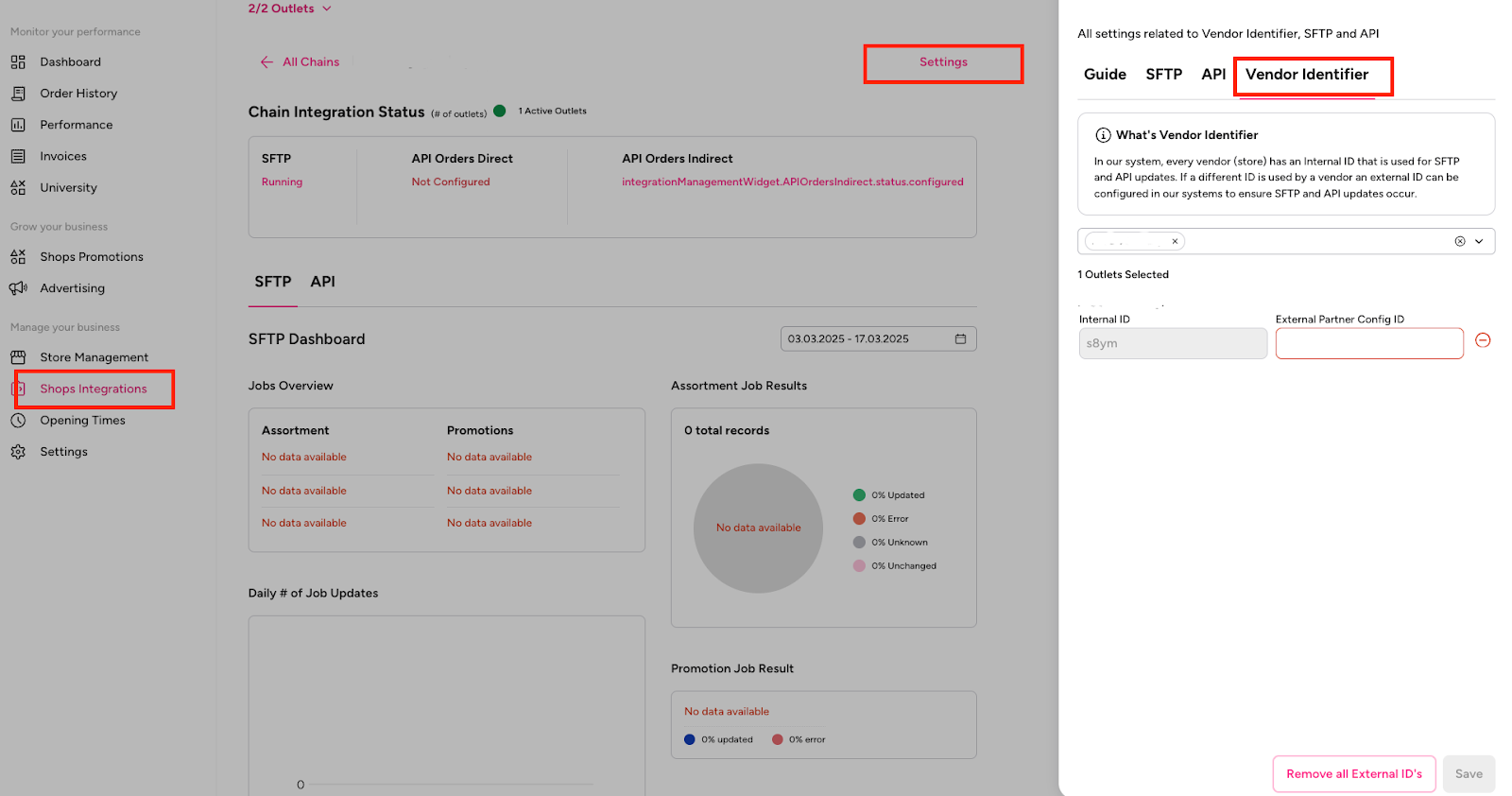
If you have your own Vendor IDs, you are welcome to use them. Simply map your IDs in the Partner Portal under the "Vendor Identifier" section, as shown in the screenshot below, and link your external Vendor ID to the Delivery Hero Vendor ID.
Can I create the same promotion for multiple vendors?#
Can I create the same promotion for multiple vendors?#
Yes. It can be done in “vendors” parameter (can be platform id or partner’s external id mapped in Partner Portal). If vendors = [*] promotion will be applied to all vendors associated with the chain.
What types of promotions can I create?#
What types of promotions can I create?#
Strikethrough Discounts (Absolute Value off, Percentage off, Final Price).
If I send two requests for the same SKU: one for strikethrough one for BOGO promotion with different overlapping dates, what will be visible on the front end?#
If I send two requests for the same SKU: one for strikethrough one for BOGO promotion with different overlapping dates, what will be visible on the front end?#
The promotion that has a later start_time will be visible after it overlaps the first promotion.
Can I modify the end date of an active promotion?#
Can I modify the end date of an active promotion?#
You should first deactivate the old promotion "active": false and send a new request with new dates.
Can I remove just one or few SKUs from the promotion?#
Can I remove just one or few SKUs from the promotion?#
Yes, by adding the relevant SKUs to the “discount” parameter and then set the “active” as “false”.
Can I use SKU or Barcode for updates?#
Can I use SKU or Barcode for updates?#
No, only SKU is supported.
What are the limitations of Partner API/Promotions?#
What are the limitations of Partner API/Promotions?#
Promotions created via API must be modified via API
To modify/delete a promo, the same body request is required
Currently, there is no item-level error visibility when using Partner API/Promotions
It is not possible to create promotions for different skus and different vendors in a single request
Is it possible for me to deactivate promotions?#
Is it possible for me to deactivate promotions?#
Yes, it is possible to do with the PUT request, setting the “active” parameter as “false”.
What is the campaign size limit?#
What is the campaign size limit?#
Partner can create up to 2 M promotions in one request (skus*vendors)
When should I expect the promotion to be visible on the front end after creating it via API?#
When should I expect the promotion to be visible on the front end after creating it via API?#
The promotion creation can take maximum up to 50 minutes if the request reaches the maximum capacity
Can I create a promotion for all vendors inside the chain?#
Can I create a promotion for all vendors inside the chain?#
If vendors = [*] promotion will be applied to all vendors associated with the chain.
Discount price changes during the campaign, do we have to deactivate the first campaign or can replace it with a new discount price?#
Discount price changes during the campaign, do we have to deactivate the first campaign or can replace it with a new discount price?#
If the discount price changes during the campaign, you can send the request for the SKU which price was changed with new dates and new prices, in this case our system will prioritise the latest start date and activate the new promotion.
How do I disable a Campaign?#
How do I disable a Campaign?#
Vendors can disable the campaign by sending "active": false in the request.
What happens if the same SKU is included in multiple promotions?#
What happens if the same SKU is included in multiple promotions?#
The promotion with the latest start date will override previous ones.
Why did my promotion not show on the front end?#
Why did my promotion not show on the front end?#
Check if:
discounted_price< original pricestart_dateis in the future and the format is correctSKU is active in catalog
The sync time (up to 50 min) has passed
How do I access the Shops Integrations Plugin?#
How do I access the Shops Integrations Plugin?#
You can access the Shops Integrations plugin in Partner Portal, you will be given access by your account manager or during registration with us.
It is advised to limit the access to Shops plugins in Partner Portal to only those who need to perform a function for your business - this is because Partner Portal can contain sensitive information i.e. webhook configurations, secret
Please reach out to your account manager if you do not know how to gain access to Partner Portal
Where can I check my promotions?#
Where can I check my promotions?#
We offer Shops Promotions plugins accessible through the store's Partner Portal account that will allow you to check the current promotions.
Where can I go for further support?#
Where can I go for further support?#
If you have any questions regarding the integration or if you are facing errors, please contact the Key Account integration Team via keyaccountsQC@deliveryhero.com or your Account Manager.
Catalog Management through SFTP#
Frequently Asked Questions about Catalog Management through SFTP
Who should generate the SFTP credentials?#
Who should generate the SFTP credentials?#
Your Account Manager should generate them for access and troubleshooting visibility.
How do I find my Vendor ID?#
How do I find my Vendor ID?#
Please reach out to your Account Manager to get the Vendor IDs.
What If I already have internal Vendor IDs and I don’t want to use Delivery Hero IDs for Store Identifiers?#
What If I already have internal Vendor IDs and I don’t want to use Delivery Hero IDs for Store Identifiers?#
If you have your own Vendor IDs, you are welcome to use them. Simply map your IDs in the Partner Portal under the "Vendor Identifier" section, as shown in the screenshot below, and link your external Vendor ID to the Delivery Hero Vendor ID.
If I already have an integration and I want to onboard new outlets, how can I integrate them?#
If I already have an integration and I want to onboard new outlets, how can I integrate them?#
Your integration setting is on chain level. If new outlets are onboarded to the existing integrated chains, there will not be a need for the additional development. You can use the same credentials. Please ensure that you send the file for the new outlet with the right vendor code in the file name.
What is the recommended upload frequency?#
What is the recommended upload frequency?#
Contrary to common sense, more uploads does not mean better out of stock values. We advise you to run an upload close to the actual stock updates and send deltas (only products that were updated) for faster update times.
Can I use SKU or Barcode for updates?#
Can I use SKU or Barcode for updates?#
Yes, SKU and Barcode are both supported.
How many decimal points can the price go up to?#
How many decimal points can the price go up to?#
Only first three decimals are supported, example: 4.5555555 will lead to 4.555
How to use max_sales_quantity?#
How to use max_sales_quantity?#
max_sales_quantity is configured at item level, it will limit the number of items a customer can place in one order e.g if the max_sales_quantity for the milk product is set to 5, the customer can place up to 5 quantities of milk in one order.
What is the significance of the quantity field?#
What is the significance of the quantity field?#
We don’t store the quantity field; it acts as a reference in comparison with the already configured sales buffer in the catalog. It is used for the deactivation or activation of products when the quantity is less or more than the sales buffer respectively.
Eg. if you send quantity as 3 & sales buffer is configured as 5, the product will be deactivated on the front end becasue quantity < sales_buffer
Sales buffer cannot be configured via API, it can be configured only in catalog please reach to Account Manager to configurations.
What should be the expected sync time for Assortment?#
What should be the expected sync time for Assortment?#
Assortment changes will take up to 15 minutes to sync to the Platform App.
Where can I check my product prices?#
Where can I check my product prices?#
We offer the Store Management plugin, accessible through the store's Partner Portal account that will allow you to check the current product prices.
Do I use the vendor ID as the file name to run a multi-vendor assortment update?#
Do I use the vendor ID as the file name to run a multi-vendor assortment update?#
No, the file naming should be set as <prefix.csv> no special identifier needs to be specified. Important: Do not use “_” as part of the prefix as it will stop the file from reading the “vendors” column.
I sent the same SKU twice in an SFTP file. What happens?#
I sent the same SKU twice in an SFTP file. What happens?#
Duplicate SKUs will result in both lines being ignored.
Why is the price not updating for a product?#
Why is the price not updating for a product?#
Check the SFTP files you have uploaded in Shops Integration Plugin in Partner Portal Common causes:
SKU not in catalog → Fix: Add SKU via POST /catalog or Partner Portal.
Price = 0 or < sales buffer → Fix: Ensure price > 0 and optionally raise sales buffer.
Duplicated SKU in file → Fix: Remove duplication.
What are the common errors observed for failed processed SFTP updates?#
What are the common errors observed for failed processed SFTP updates?#
Incorrect Name Format (example of common errors)
qa_v4ft.csv→ system will not read the vendor column in the file.qa.csv→ no vendor id is found in the file name → we fallback to vendor column search → if found → it proceeds , else it fails.
Incorrect Folder in foodpanda SFTP Server was used to drop the file- in this case the file will be rejected.
If you send price 0 or negative - the line will be ignored
SKU does not exist in Catalog- if you have not added particular SKU to your Catalog - there is nothing to update, therefore the line will be ignored and you will see “Missing SKU” error
Duplicated SKU sent - in this case both lines will be ignored.
How do I view Assortment updates in the Partner Portal?#
How do I view Assortment updates in the Partner Portal?#
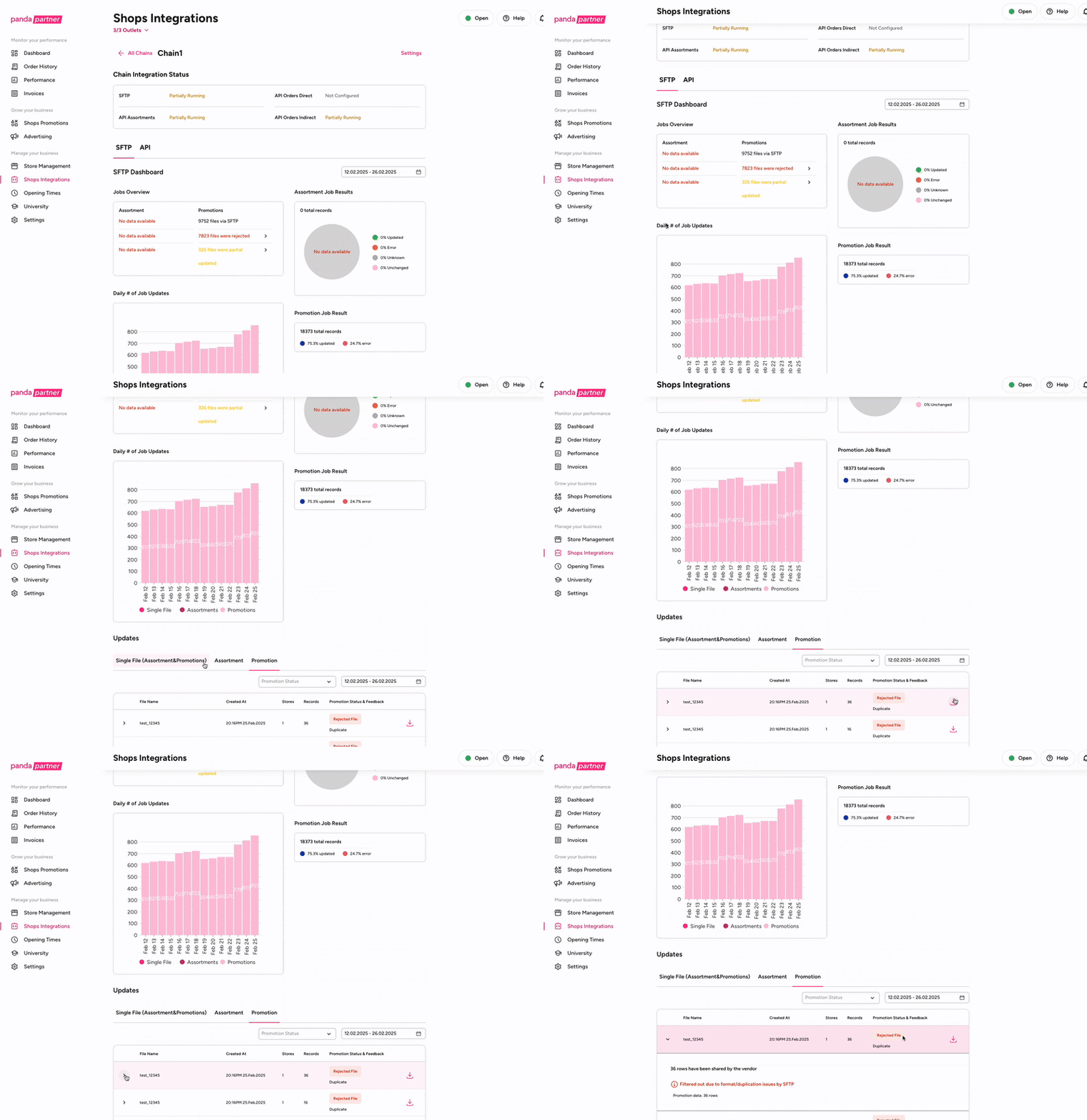
The Assortment Files can be viewed in Shops Integration Plugin in the Partner Portal. Moreover, you are able to download the files that have been uploaded and see the errors if any occurred on the item level.
What is Partner Portal and how do I get access?#
What is Partner Portal and how do I get access?#
The Partner Portal is a back-office tool designed to help partners efficiently manage their stores on our platform. It serves as a central hub where you can review and control various functions of your store operations. Once you're onboarded, our Account Management team will provide you with access to the portal.
Through the Partner Portal, you will be able to :
View your product catalog
Set up and configure store integrations
Monitor promotions
Define store opening and closing times
Review orders across all your stores
Identify issues and perform initial troubleshooting
Key Plugins:
Shops Integration Plugin
This plugin enables you to manage and review your integrations. You can:
Review the daily job updates for both Promotion and Assortment SFTP files
View existing integrations and their status
Access uploaded SFTP files
Review SFTP file contents and check for any errors that occurred during the upload process
Pause the integration
Shops Promotions Plugin
This plugin gives you a complete overview of all promotions created for your store(s). You can:
Review all active and historical promotions
See how each promotion that was created (e.g., via SFTP or API)
View detailed information including creation date, time, and affected SKUs
Check promotional prices and scheduling
Please reach out to your Account Manager in order to receive access to the Partner Portal.
How do I access the Shops Integrations Plugin?#
How do I access the Shops Integrations Plugin?#
You can access the Shops Integrations plugin in Partner Portal, you will be given access by your account manager or during registration with us.
It is advised to limit the access to Shops plugins in Partner Portal to only those who need to perform a function for your business - this is because Partner Portal can contain sensitive information i.e. webhook configurations, access tokens
Please reach out to your account manager if you do not know how to gain access to Partner Portal
Where can I go for further support?#
Where can I go for further support?#
If you have any questions regarding the integration or if you are facing errors, please contact the Key Account integration Team via keyaccountsQC@deliveryhero.com or your Account Manager.
Promotion Management through SFTP#
Frequently Asked Questions about Promotion Management through SFTP
Who should generate the SFTP credentials?#
Who should generate the SFTP credentials?#
Your Account Manager should generate them for access and troubleshooting visibility.
How do I find my Vendor ID?#
How do I find my Vendor ID?#
Please reach out to your Account Manager to get the Vendor ID.
What If I already have internal Vendor IDs and I don’t want to use Delivery Hero IDs for Store Identifiers?#
What If I already have internal Vendor IDs and I don’t want to use Delivery Hero IDs for Store Identifiers?#
If you have your own Vendor IDs, you are welcome to use them. Simply map your IDs in the Partner Portal under the "Vendor Identifier" section, as shown in the screenshot below, and link your external Vendor ID to the Delivery Hero Vendor ID.
If I already have an integration and I want to onboard new outlets, how can I integrate them?#
If I already have an integration and I want to onboard new outlets, how can I integrate them?#
Your integration setting is on chain level. If new outlets are onboarded to the existing integrated chains, there will not be a need for the additional development. You can use the same credentials. Please ensure that you send the file for the new outlet with the right vendor code in the file name.
What types of promotions can I create?#
What types of promotions can I create?#
Strikethrough Discounts (Absolute Value off, Percentage off, Final Price)
Can I use barcode instead of SKU?#
Can I use barcode instead of SKU?#
Yes, SKU and Barcode are both supported, but if you want to use barcodes- please inform your Account Manager beforehand
How many decimal points can the price go up to?#
How many decimal points can the price go up to?#
Only first three decimals are supported, example: 4.5555555 will lead to 4.555
Can I create the same promotion for multiple vendors?#
Can I create the same promotion for multiple vendors?#
Yes. By sending “all” in the vendors column all stores inside the chain will be part of the promotion.
Can I modify the end date of an active promotion?#
Can I modify the end date of an active promotion?#
You should first deactivate the old promotion by sending the files including the products you want to deactivate with campaign_status =0. Or send a new file with later start_date, in this case our system will overlap the previous promotions and prioritise the second one.
Can I remove just one or few SKUs from the promotion?#
Can I remove just one or few SKUs from the promotion?#
Yes, by adding the SKUs you want to remove from the promotions to file and use campaign_status= 0 to deactivate these particular products.
Do I use the vendor ID as the file name to run a multi-vendor assortment update?#
Do I use the vendor ID as the file name to run a multi-vendor assortment update?#
No, the file naming should be set as “prefix.csv” (the prefix can be anything) no special identifier needs to be specified. Important: Do not use “_” as part of the prefix as it will stop the file from reading the “vendors” column.
File name scenarios: Qa_v4ft.csv → do not read vendor column in file. Qa.csv → no vendor id found → we fallback to vendor column search → if found → we proceed , else we fail.
If I send two requests for the same SKU: one for strikethrough one for BOGO promotion with different overlapping dates, what will be visible on the front end?#
If I send two requests for the same SKU: one for strikethrough one for BOGO promotion with different overlapping dates, what will be visible on the front end?#
The promotion that has a later start_time will be visible after it overlaps the first promotion.
Is it possible for me to deactivate promotions?#
Is it possible for me to deactivate promotions?#
Yes, it is possible to do with additional file adding campaign_status =0 in the column for all lines
What is the campaign size limit?#
What is the campaign size limit?#
The Limit for the size of each campaign is 19,999 SKUs.
When should I expect the promotion to be visible on the front end after creating it via SFTP?#
When should I expect the promotion to be visible on the front end after creating it via SFTP?#
The promotion creation can take maximum up to 50 minutes.
How do I view Promotion updates in the Partner Portal?#
How do I view Promotion updates in the Partner Portal?#
Promotion Files can be viewed in Shops Integration Plugin in Partner Portal. Moreover, you are able to download the files that have been uploaded and see the errors if there are any occurred on the item level.
Can I change the start and end dates of a campaign, and what happens if they remove a specific SKU from a running campaign?#
Can I change the start and end dates of a campaign, and what happens if they remove a specific SKU from a running campaign?#
By sending the updated promotions file with later start dates, our system will prioritise this file over the previous one, and the old promotions will be overridden by the new ones. If you only want to deactivate a single SKU, you can set the “campaign status”= 0, and that SKU will be removed from the promotion.
Discount price changes during the campaign, do we have to deactivate the first campaign or can replace it with a new discount price?#
Discount price changes during the campaign, do we have to deactivate the first campaign or can replace it with a new discount price?#
If the discount price changes during the campaign, you can send the same file with the new dates and new prices, in this case our system will prioritise the latest start date and activate the new promotion.
I sent the same SKU twice in an SFTP file. What happens?#
I sent the same SKU twice in an SFTP file. What happens?#
We will process the 1st row and remove remaining duplicated rows.
#Why did my promotion not show on the front end?
Check if:
discounted_price < original price
start_date is in the future and the format is correct
SKU is active in catalog
The sync time (up to 50 min) has passed
What are the common errors observed for Promotions?#
What are the common errors observed for Promotions?#
Incorrect Name Format (example of common errors)
qa_v4ft.csv→ system will not read the vendor column in the file.qa.csv→ no vendor id is found in the file name → we fallback to vendor column search → if found → it proceeds , else it fails.
Past date for the promotion- the line will fail if the date in the past is sent. You will see “Filtered by SFTP” when downloading the file
The discount price is larger than the original price- the line will not be processed, if other lines are correct - they will be processed
Incorrect Date format- the lines will fail. If you want to use different date format- please let your Account Manager know, we can accommodate that
SKU does not exist in Catalog- if you have not added particular SKU to your Catalog - there is nothing to create a promotion for, therefore the line will be ignored and you will see “Missing SKU” error
If you send
discounted_price0 or negative - the line will be ignoredIncorrect Folder in foodpanda central was used to add the file- in this case the file will be rejected
Duplicated SKU sent - in this case both lines will be ignored.
What is Partner Portal and how do I get access?#
What is Partner Portal and how do I get access?#
The Partner Portal is a back-office tool designed to help partners efficiently manage their stores on our platform. It serves as a central hub where you can review and control various functions of your store operations. Once you're onboarded, our Account Management team will provide you with access to the portal.
Through the Partner Portal, you will be able to :
View your product catalog
Set up and configure store integrations
Monitor promotions
Define store opening and closing times
Review orders across all your stores
Identify issues and perform initial troubleshooting
Key Plugins:
Shops Integration Plugin
This plugin enables you to manage and review your integrations. You can:
Review the daily job updates for both Promotion and Assortment SFTP files
View existing integrations and their status
Access uploaded SFTP files
Review SFTP file contents and check for any errors that occurred during the upload process
Pause the integration
Shops Promotions Plugin
This plugin gives you a complete overview of all promotions created for your store(s). You can:
Review all active and historical promotions
See how each promotion that was created (e.g., via SFTP or API)
View detailed information including creation date, time, and affected SKUs
Check promotional prices and scheduling
Please reach out to your Account Manager in order to receive access to the Partner Portal.
How do I access the Shops Integrations Plugin?#
How do I access the Shops Integrations Plugin?#
You can access the Shops Integrations plugin in Partner Portal, you will be given access by your account manager or during registration with us.
It is advised to limit the access to Shops plugins in Partner Portal to only those who need to perform a function for your business - this is because Partner Portal can contain sensitive information i.e. webhook configurations, access tokens
Please reach out to your account manager if you do not know how to gain access to Partner Portal
Where can I check my promotions?#
Where can I check my promotions?#
We offer Shops Promotions plugins accessible through the store's Partner Portal account that will allow you to check the current promotions.
Where can I go for further support?#
Where can I go for further support?#
If you have any questions regarding the integration or if you are facing errors, please contact the Key Account integration Team via keyaccountsQC@deliveryhero.com or your Account Manager.