API
Partner API Overview
Sandbox Testing
Manage Incoming Orders
Manage your Catalog of products
Manage your Promotions
Manage your Outlets
SFTP
Manage your Catalog of products
Manage your Promotions
Sandbox Testing#
In order to test your integration in Sandbox environment, you’ll need to do the following:#
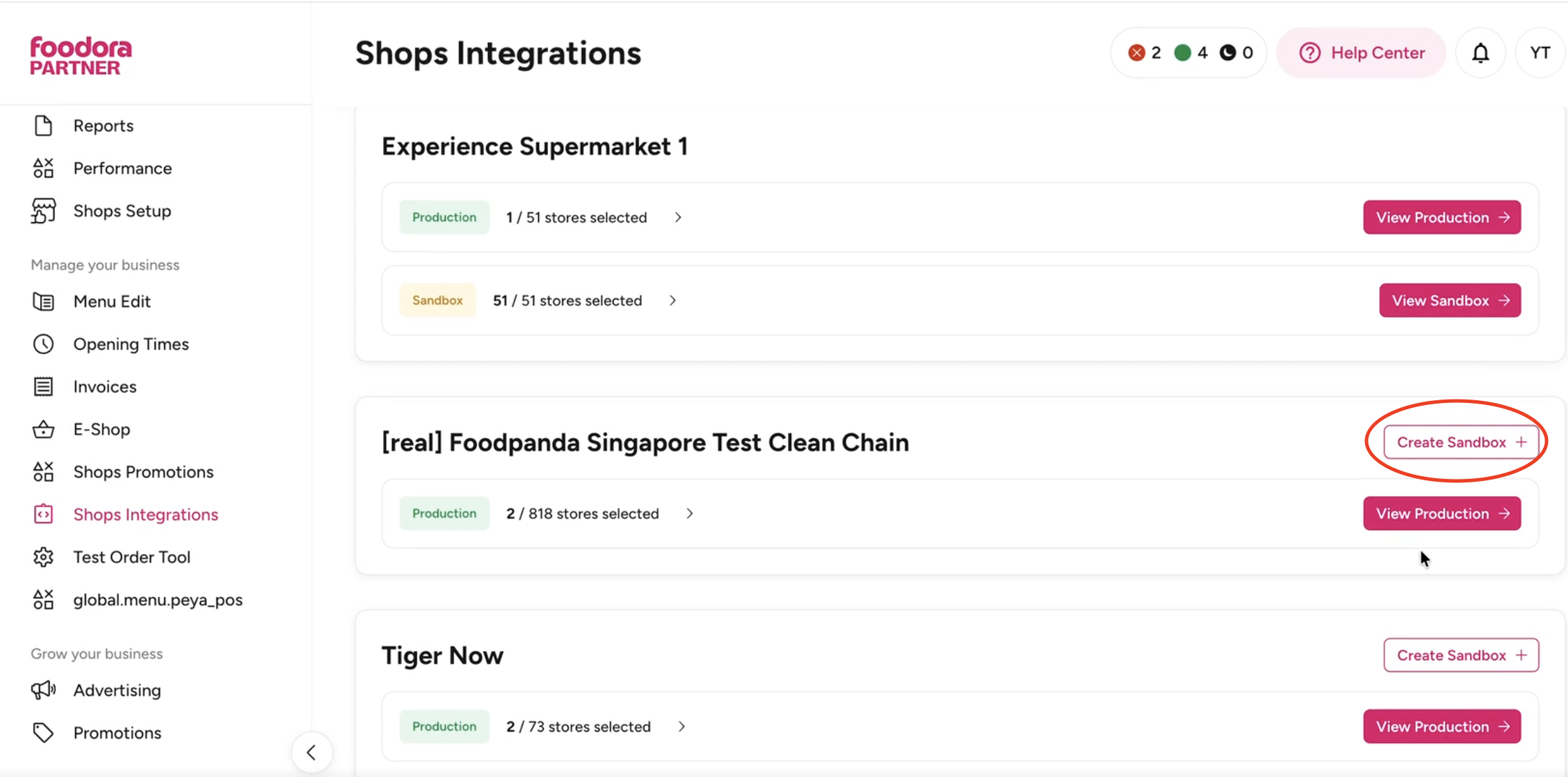
Go to the Partner Portal and create the sandbox environment, you will find this option in Shops Integrations Plugin, near your chain name:
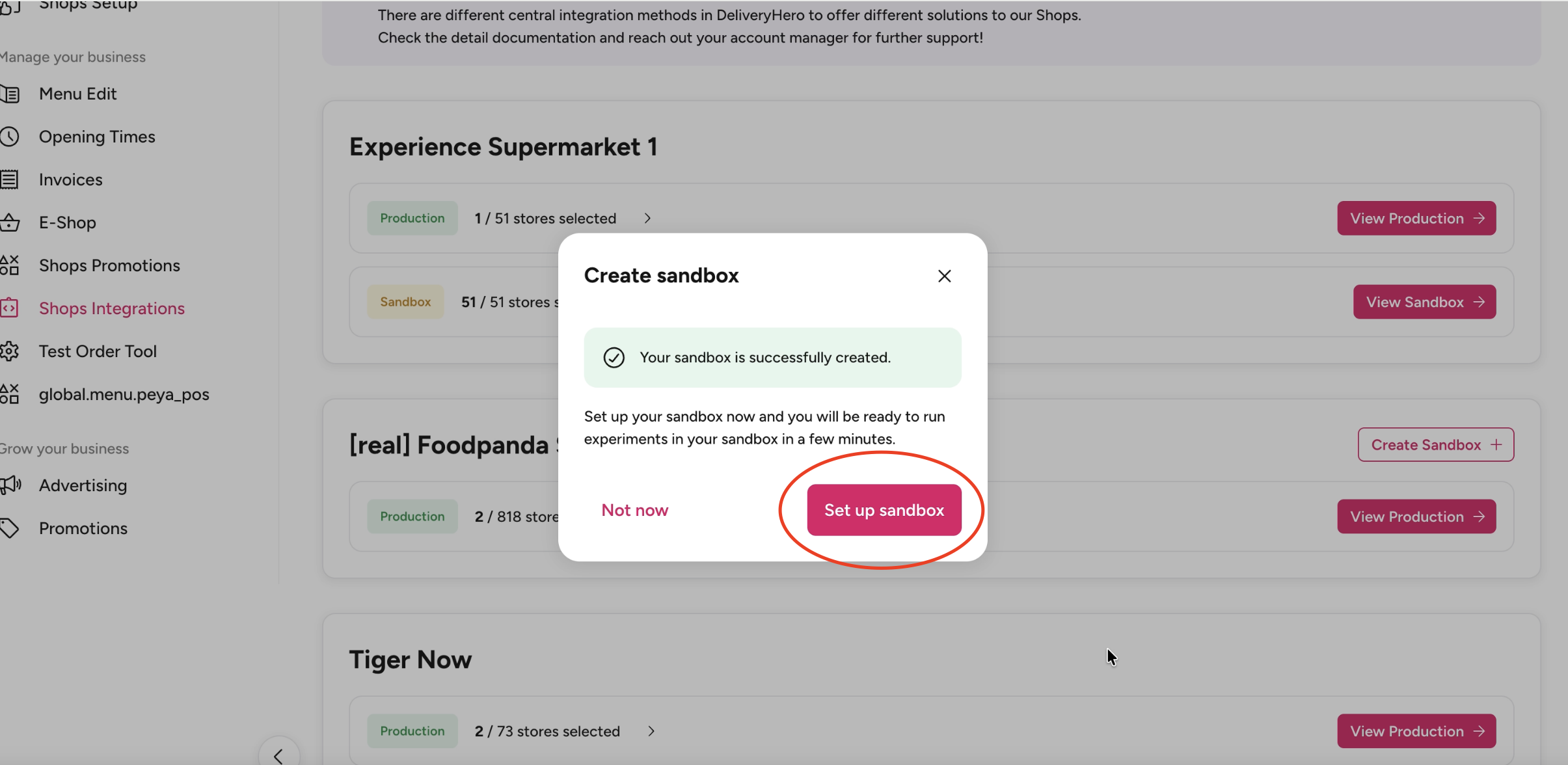
After your sandbox is created, proceed to setting it up by clicking "Set up sandbox" on the pop-up window.
Step 1: Set up Sandbox
Generate sandbox credentials: Client ID and Client Secret
After credentials are created, it may take up to 5 minutes for them to synchronize with our system. If the credentials do not work immediately, please wait a few minutes and try again.
These are sandbox credentials, they will not be applicable for the production environment
Step 2: Retrieve data for your sandbox environment
Download sandbox vendor identifiers (the unique identifiers of stores within the platform), these are system generated and might be different from the production ones you are using
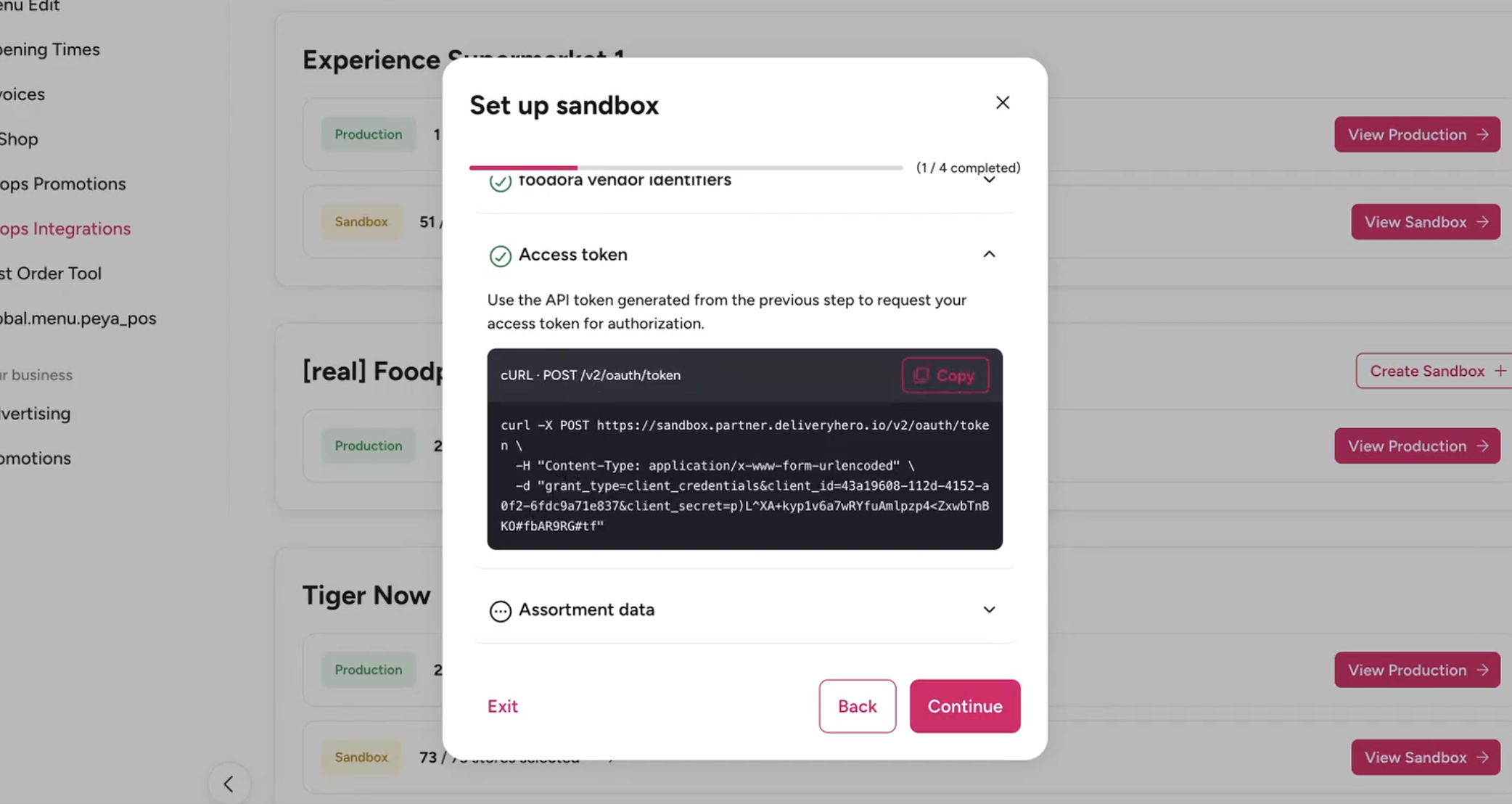
Create the access token in order to send further requests. Copy the given cURL, use your credentials created earlier and send the request to create the token:
Get the sandbox assortment data, which might be different from your products in production. Send the GET request in your preferred API testing tool (e.g. Postman) and receive the list of SKUs (skip this step if it is not applicable for your integration)
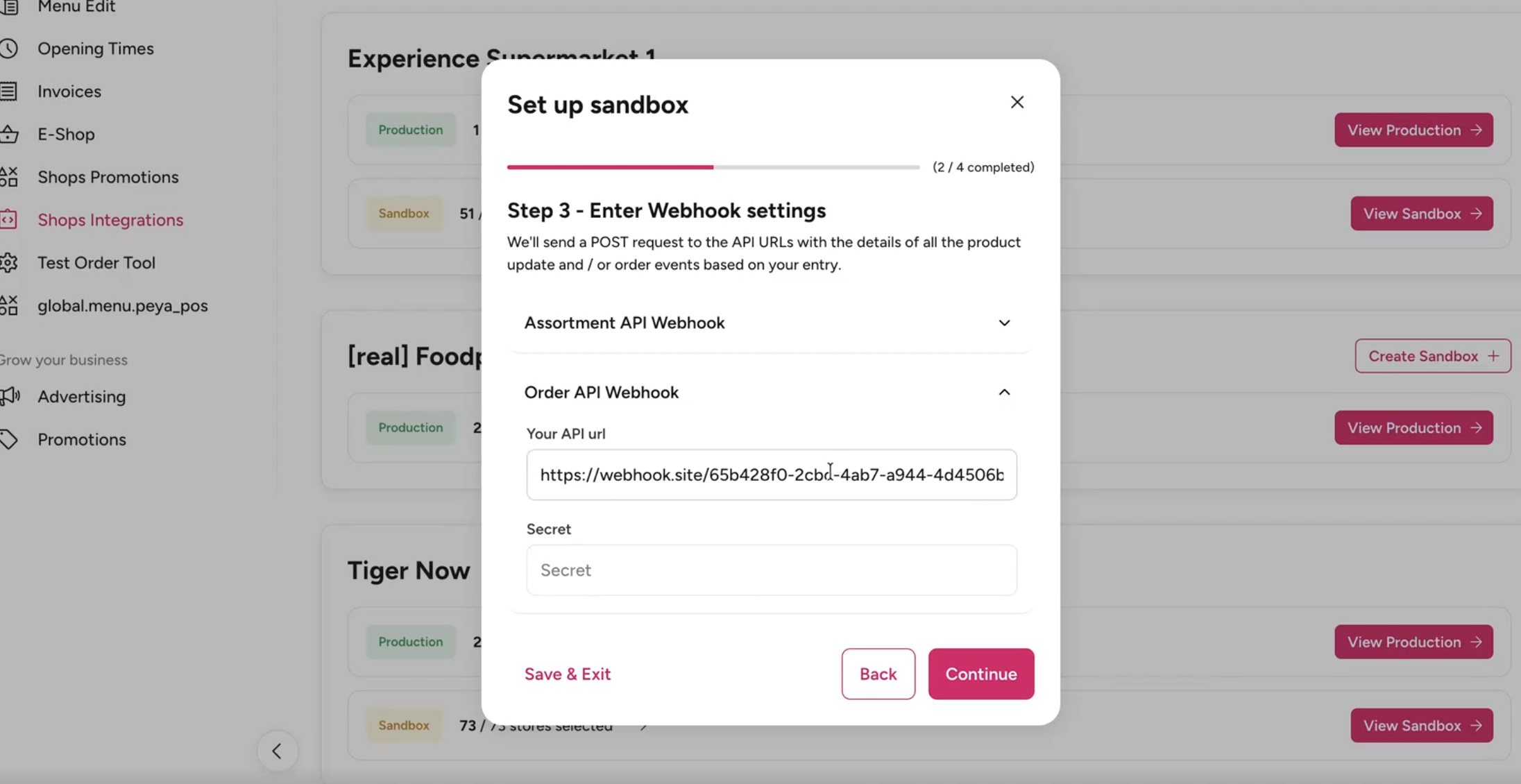
Step 3: Enter Webhook Settings
Add your Assortment Webhook to the given field. And use preferred API testing tool to update the Catalog information(price/stock). After that your webhook will receive the whole snapshot of the statuses of all products you have updated. (skip this step if it is not applicable for your integration)
Add your Order Webhook URL and click "Continue":
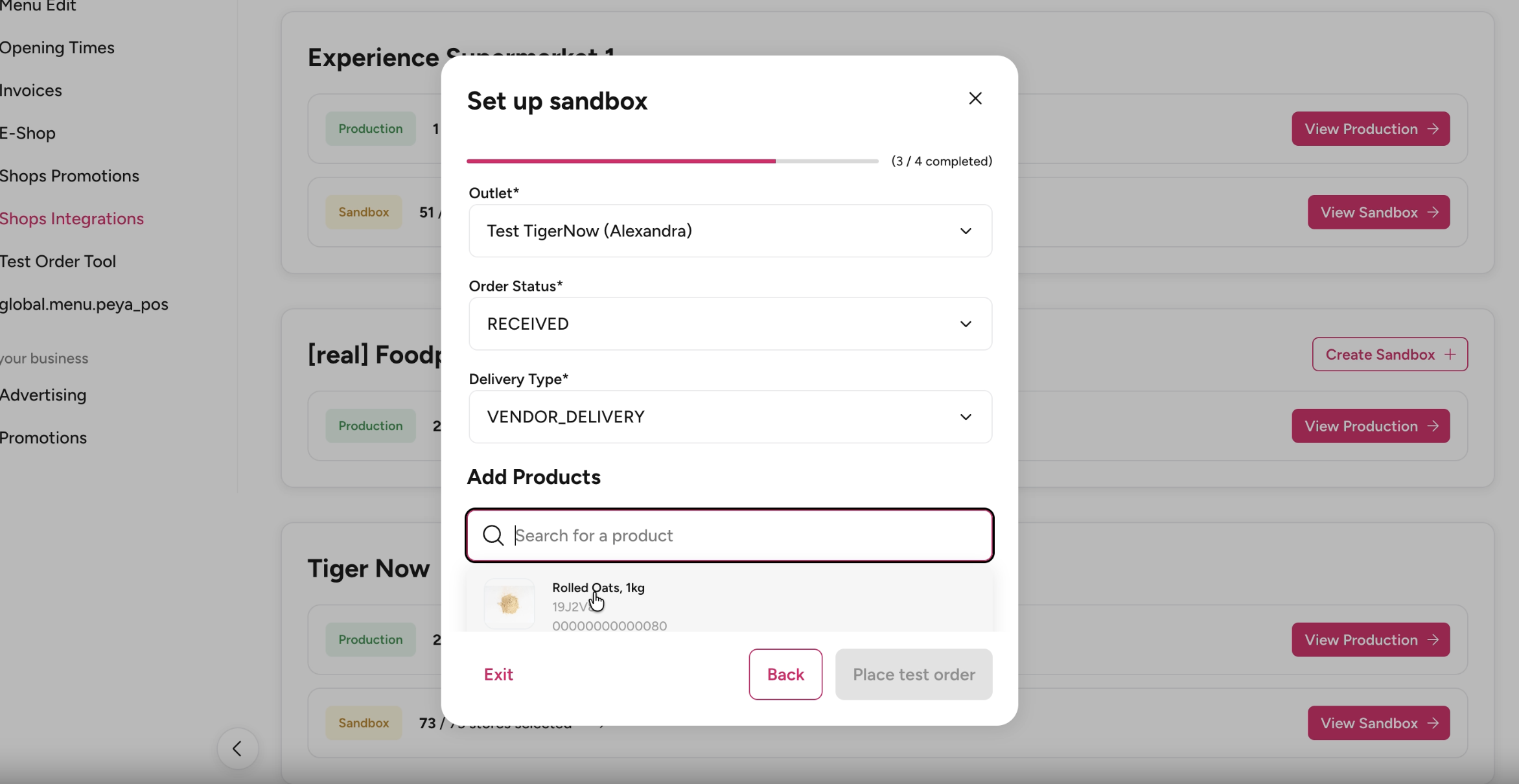
Step 4: Place a test Order
For the Order Sandbox testing, please choose the outlet from the sandbox vendor list
If you want to test the flow for fulfilling an order for Partner Picking Integration:
Select the order status as
RECEIVEDand select the preferred delivery type:LOGISCTICS_DELIEVRY(platform delivery) orVENDOR_DELIVERY(your own delivery)You will receive
RECEIVEDevent to your webhook with all item level information.Send PUT request to fulfil the order with either
READY_FOR_PICKUPevent (if you choseLOGISCTICS_DELIEVRY) orDISPATCHED(if you choseVENDOR_DELIVERY). Please check more details on the endpoints in API specification documentation.
Please add item level status for each product you received with RECEIVED event
Now you will receive
READY_FOR_PICKUPevent to your webhook.
If you want to test the flow to cancel an order for Partner Picking Integration:
Select the order status as
RECEIVED, select the preferred delivery type:LOGISCTICS_DELIEVRY(platform delivery) orVENDOR_DELIVERY(your own delivery).You will receive
RECEIVEDevent to your webhook with all item level information.Send PUT request to cancel the order with
CANCELLEDevent. Please add the reason for the cancellation, for exampleCLOSED,ITEM_UNAVAILIBLEorTOO_BUSY. You can check more details on the endpoints in API specification documentation.Now you will receive
CANCELLEDevent to your webhook.
If you want to test the webhook for Pelican Picking Integration:
Select the order status as
READY_FOR_PICKUPand delivery typeLOGISCTICS_DELIVERYAdd an SKU to the order and select the item status as
IN_CART
Click on Trigger order
You will now receive
READY_FOR_PICKUPevent to your webhook.